How to Find Your Port-Out PIN in Office
Find the port-out PIN for a Zonitel number, understand No PIN, and see which numbers have already moved to another carrier.
If you are moving an existing Zonitel number to another provider, the new provider starts the transfer. In Office, you can look up the PIN for the number you want to move and see which numbers have already left your account.
1. Open the port-out tab
- In Office, confirm the location that owns the number.
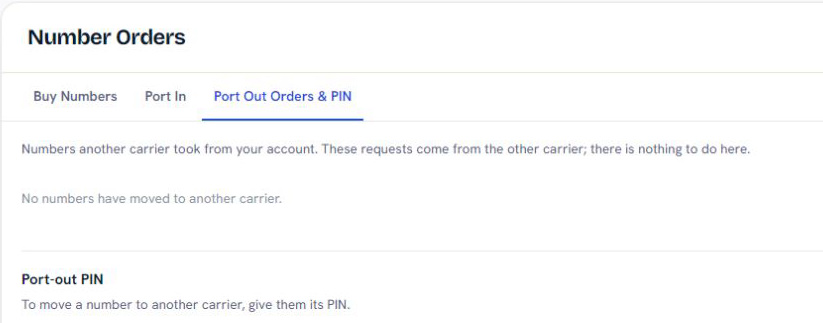
- Go to Settings → Number Orders → Port Out Orders & PIN.
- Scroll to Port-out PIN and find the row for the exact number you intend to move.

2. Check whether the number needs a PIN
- Show PIN appears when Office has a PIN for that line. Open it privately and give the PIN only to the new provider handling your transfer, through its secure process. Keep it out of screenshots and support emails.
- No PIN means the number can move without a PIN. If the new provider asks for the account number, contact Zonitel.

3. Confirm the transfer with the new provider
The new provider sets the transfer date. The top of Port Out Orders & PIN shows numbers that have already moved. If the number is still in progress, ask the new provider for its status. Keep your existing service active until the transfer is confirmed and you have tested the line with the new provider.
To confirm which location owns a number, see Manage Your Phone Numbers in Office.
Need help?
Call, text or WhatsApp (833) 966-4835, or email info@zonitel.com. Share relevant examples privately; never include passwords or verification codes.