How to Start a Local Number Transfer in Office
Start a transfer for a U.S. local number in Office, enter the details from your current provider, and check Port In for the request.
Use Port In to start moving an existing U.S. local number to Zonitel. For a toll-free number, contact Zonitel Support to arrange the transfer.
Before you start
Have your current provider’s account details ready. If the number is mobile, ask that provider whether it requires a separate Number Transfer PIN. Keep your old service active. See What You Need to Port Your Phone Number to Zonitel for the full checklist.
1. Open the request
- In Office, confirm the location that should receive the numbers.
- Open Settings → Number Orders → Port In.
- Select Bring numbers.
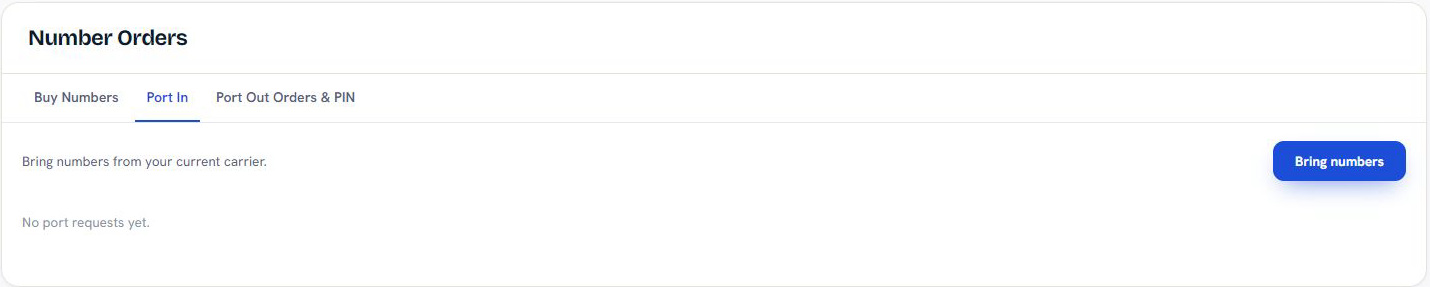

2. Enter your local numbers
- In Bring your numbers, enter each complete local number under Phone numbers.
- Use Add another number for multiple lines, or paste a list and check that Office puts the numbers on separate rows.
- Confirm the numbers and select Next to continue to Details.
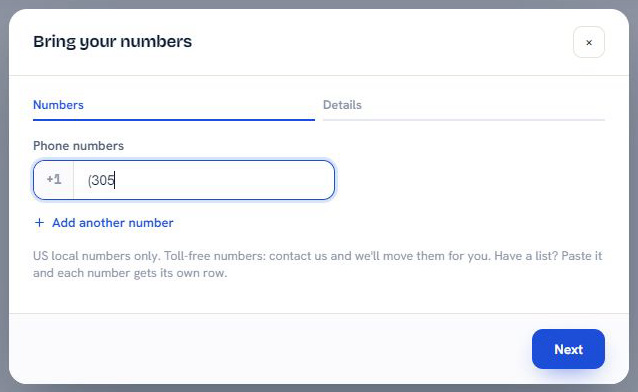
3. Review the details and check the request
Complete the fields Office requests using information from your current provider. Double-check the numbers and account details before submitting the request. Then return to Number Orders → Port In to find it.
Wait for the transfer date to be confirmed. Once the number is active in Zonitel, test calls and any messaging you use before closing service with the old provider.
Need help?
Call, text or WhatsApp (833) 966-4835, or email info@zonitel.com. Share relevant examples privately; never include passwords or verification codes.