How to Buy a New Phone Number in Office
Find available local numbers in Buy Numbers, choose where each one routes calls, and check your request in Office.
Use Buy Numbers to order a new local phone number for your business and set where incoming calls should go. Confirm the location that should own the number before you start.
1. Search for a number
- Open Settings → Number Orders → Buy Numbers.
- Select a state and then an area code that has numbers available. You can also enter an area code or the full number you are looking for in the search field.
- Open the search result to see the available numbers.
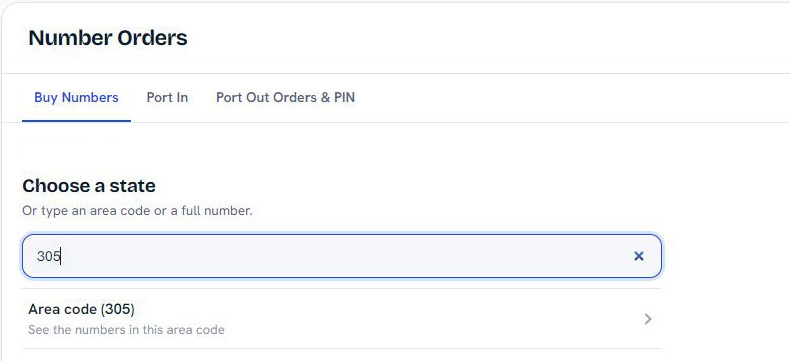

2. Select the numbers you want
Under Choose your numbers, check each number you want and select Next. If the list is empty, select Back and try another area code. When Show other numbers appears, use it to see more choices.
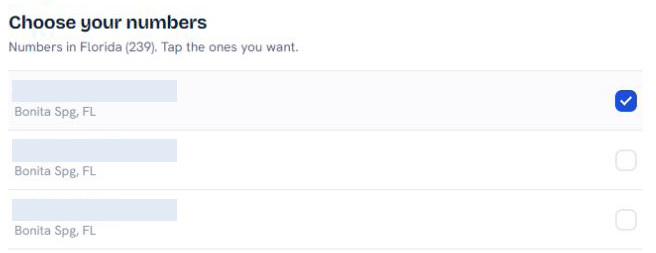
3. Set where calls go
In Where do calls go?, select Choose a destination for every number. Pick the extension, ring group, phone menu (IVR) or other destination that should receive its calls. Once each number has a destination, select Next.
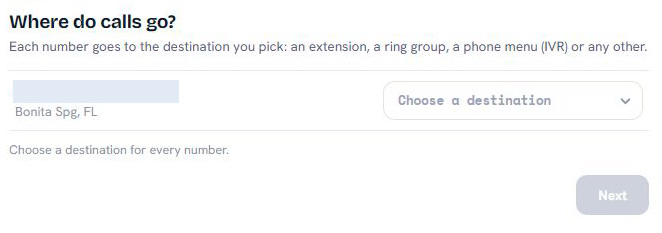
4. Review the order and check the request
Review the selected numbers, their destinations and any charges shown before confirming the order. Check Your requests under Buy Numbers for the status. When the number is ready, find it in Settings → Phone Numbers and test incoming calls before publishing it.
See Manage Your Phone Numbers in Office to review the number and its call flow afterward.
Need help?
Call, text or WhatsApp (833) 966-4835, or email info@zonitel.com. Share relevant examples privately; never include passwords or verification codes.