How to Approve an App for Your Company in Office
Use Connected apps to look up an app by Client ID, review its details, and approve it for the company you selected in Office.
Use Connected apps when a trusted app provider asks you to approve its app for your company. You need the provider’s Client ID and permission to approve apps for that company.
1. Open Connected apps
- Confirm the company or location at the top of Office.
- Go to Settings → Connected apps.
- Select Allow an app.


2. Look up the app and review its details
- Enter the Client ID provided by the app’s publisher. Leave client secrets, API keys and passwords out of this form.
- Select Look up. Check that the app and publisher match the service you intended to connect. Review any permissions Office shows. If the app or requested access is unclear, cancel and check with the provider.
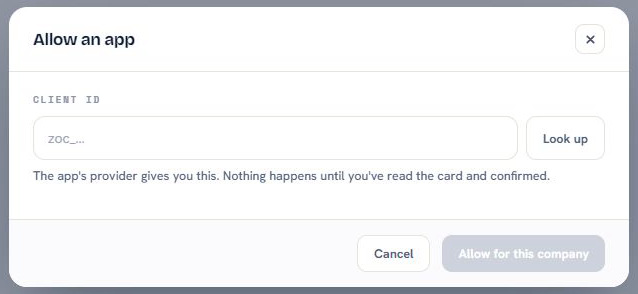
3. Approve for the selected company
Once you have reviewed the app and confirmed the company, select Allow for this company. Return to Connected apps to confirm it appears for that company. If the app provider has additional setup steps, follow its official instructions.
If the lookup finds no app, confirm the exact Client ID with the provider. If you need to review the apps linked to your personal sign-in, see Review Login History and Manage Your Devices. Developers can use Connect Your App with Zonitel OAuth.
Need help?
Call, text or WhatsApp (833) 966-4835, or email info@zonitel.com. Share relevant examples privately; never include passwords or verification codes.