How to Review Callback Requests in the Waiting List
Find callback requests, filter by client, business number, status and date, and organize follow-up without confusing the list with the live queue.
Waiting List contains callers who requested a callback instead of continuing to hold in a queue. It is a follow-up list, not a screen showing everyone currently waiting in a live Call Center queue.
Open the list
- Select the correct business location in Office.
- Open Calls → Waiting List.
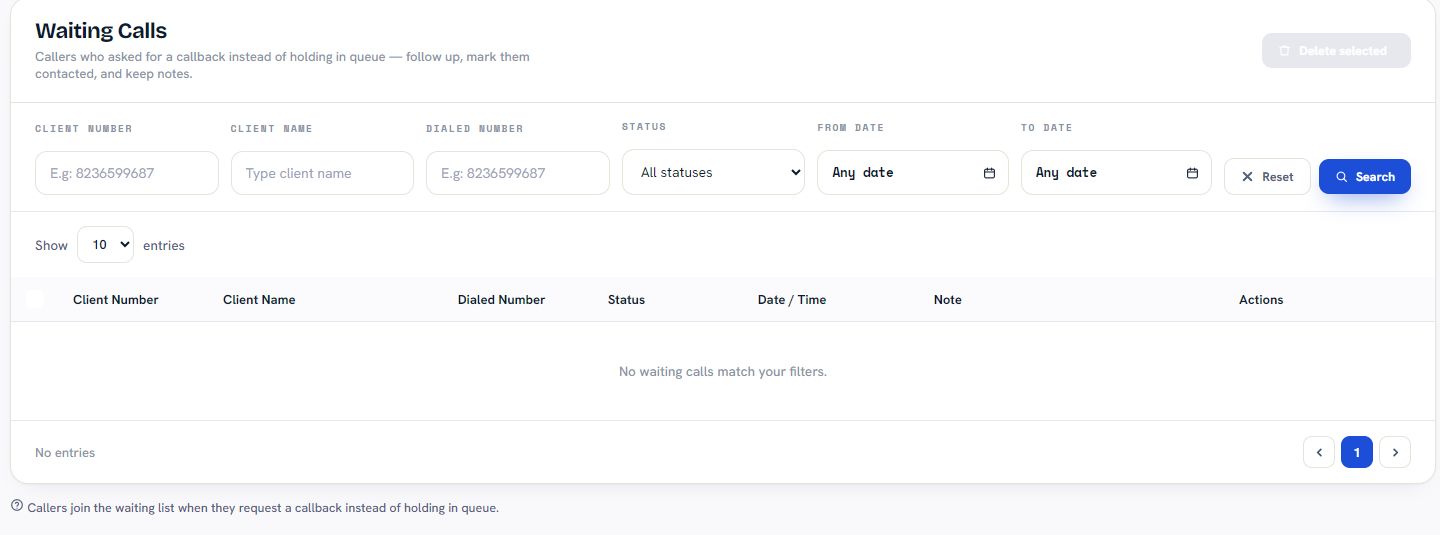
- The page is titled Waiting Calls. Review the matching requests.

Find the request you need
- Client Number: the caller’s number.
- Client Name: search by the displayed client name.
- Dialed Number: the business number the caller dialed.
- Status: choose All statuses, Pending, Completed or Pending-Notes Added.
- From date / To date: narrow the date range.
Click Search to apply the filters or Reset to clear them. Use the entries selector and page controls to browse the results.
Review and organize follow-up
Each row shows Client Number, Client Name, Dialed Number, Status, Date / Time, Note and Actions. Check the existing status and notes before contacting the caller so your team avoids duplicate follow-up.
Keep follow-up notes brief and appropriate for your business. When handling a request, use the row controls available to your account to maintain its follow-up record. Do not delete a request merely to mark it handled; deletion and completion are different actions.
If the list is empty
- Confirm the selected business location.
- Reset restrictive filters and check the date range.
- Confirm that a caller actually requested a callback in the relevant queue.
- If an expected request is missing, contact Support with the business number and call time, including the time zone.
Important: seeing a request here does not prove that an automatic callback has been scheduled or that the caller kept a place in the live queue. Confirm your queue’s configured callback behavior with Support.
Related guide
Need help?
Call/Text/WhatsApp: (833) 966-4835
Email: info@zonitel.com