How to Enable Desktop Notifications for New Messages in Office
Enable message alerts on this computer and troubleshoot browser permissions, Focus mode, and Office notification settings.
Desktop notifications let Office alert you on this computer when new messages arrive. Enable them from your personal profile menu and review your browser's notification permission.
Enable alerts on this computer
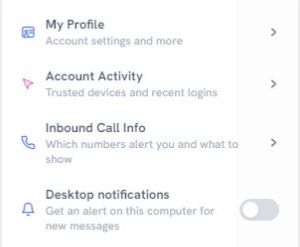

- Sign in to Office on the computer where you want alerts.
- Open your profile menu in the bottom-left corner (Hi, followed by your name).
- Find Desktop notifications, labeled Get an alert on this computer for new messages, and turn the switch on.
- If the browser asks whether Office can show notifications, allow them only on your trusted computer.
- Keep Office open and ask a teammate to send a test message. Check whether an alert appears.
These are message alerts, not call routing. For the information card that appears during incoming calls, see Inbound Call Info.
If notifications do not appear
- Check that the switch is on in the Office profile menu.
- Review the browser's site permissions for office.zonitel.com. Notifications must not be blocked. If you denied permission earlier, change it there and reload Office.
- Check your computer's notification settings and Do Not Disturb or Focus mode.
- Confirm you are signed in to the correct business location and can see the test message in Inbox.
- Do not assume that alerts work with Office or the browser closed; test your actual browser and computer setup.
Other notification settings are separate
Notifications Config manages business notification/report settings. Inbound Call Info selects caller-card data and alert numbers. Mobile-app permissions are controlled on your phone. Desktop notifications do not replace any of those settings.
Turn alerts off
Return to the same profile menu and turn off Desktop notifications. On a shared computer, also review the browser permission and sign out when finished.
Need help?
Call/Text/WhatsApp: (833) 966-4835
Email: info@zonitel.com