How to Access & Download Call Recordings from Call Logs
Find recorded calls with Call Logs filters, then use Play or Download in the Recordings column. Learn about notes, exports and recording availability.
Step-by-step: Download call recordings from Call Logs
-
Log in to your Zonitel Office Portal.
-
Go to Calls → All Calls (Call Logs).
-
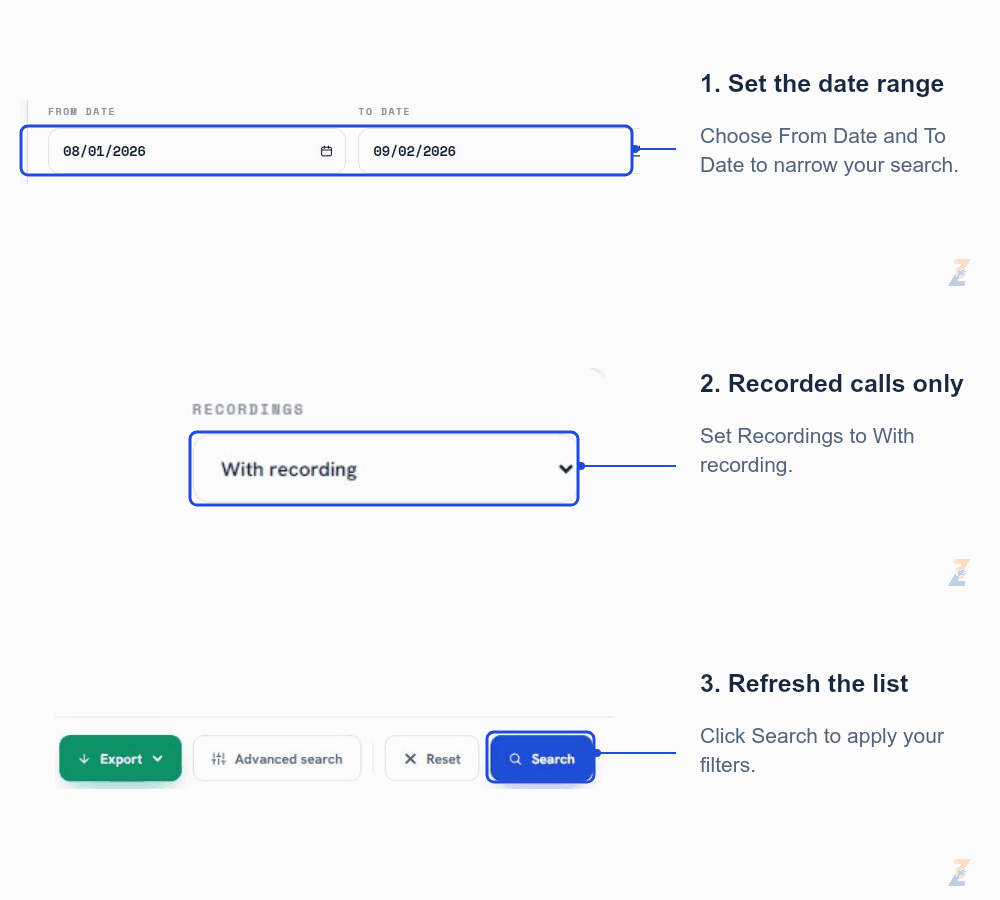
Use filters to locate the call:
- Direction (Any / Local / Inbound / Outbound)
- Contact (enter a number or contact name)
- Local Number (the business number that received/placed the call)
- Extension (agent/user)
- Recordings (All / With recording / Without recording)
- From Date / To Date
- Duration (sec)
- Missed Call (Yes / No)
- Notes (All / Has notes / No notes)
- Sentiment (All / Positive / Negative / Neutral)
-
Click Search to refresh results. You can also click Reset to clear all filters.
-
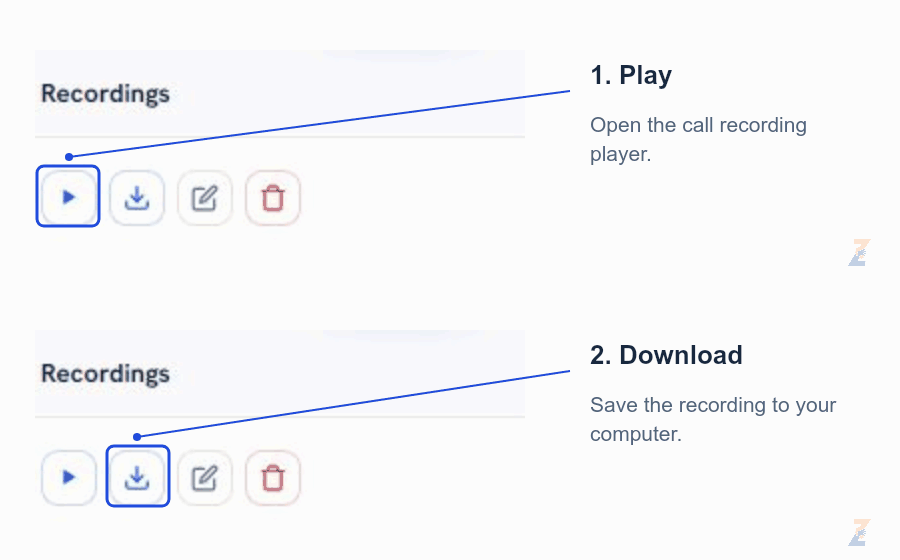
In the call list, locate the call and go to the Recordings column. If a call has no recording, the column shows “No recording.”
-
Click the Play icon
 to open the Call Recording player.
-
Click the Download icon
 to save the recording to your computer.
-
The Recordings column also includes an Edit icon
 to add or update a note for the recording, and a Delete icon
 (red) to permanently remove it.
-
(Optional) Use Export if you need a report of filtered call activity for your records.
Best practices
-
Use date filters first (last 7 days / last month) to find recordings faster.
-
Standardize team workflows: “If it’s a dispute, download the recording and attach it to the ticket.”
-
Keep recordings internal and limit access to authorized users (privacy + compliance).
FAQ
Q: Why don’t I see a recording for every call?
A: Recordings are only available when call recording is enabled and supported for that call. Some calls may not be recorded due to settings, permissions, or call type.
Q: How long will call recordings be saved?
A: Recordings are available for around 3 months on our system.
Q: Can I filter to show only recorded calls?
A: Yes—use the Recordings filter set to With recording on the Call Logs screen, then click Search.
Q: Can I export a list of calls for a date range?
A: Yes—use filters, then click Export to download a report (format options depend on your account).
Need help?
Call/Text/WhatsApp: (833) 966-4835
Email: info@zonitel.com