How to Send Images to Multiple Recipients with Group MMS
Attach images to a Group Message, review the supported limits and recipients, then send or schedule the MMS campaign.
Adding an image to a Group Message sends the campaign as MMS. Start with recipients who have consented and a business number enabled for the intended messaging use.
Add and review your images
- Open Conversations → Group Messages → New Message.
- In To, select the intended lists or contacts, or enter a phone number and press Enter.
- Write the text that should accompany the images.
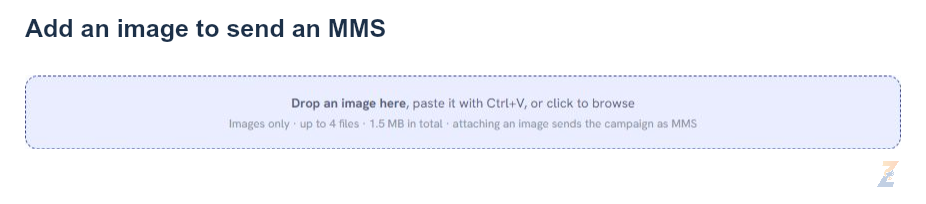
- Use Add image or the attachment area. Drag an image into the area, paste an image with Ctrl+V, or click to browse.
- Wait for the attachment preview. The group composer currently accepts images only, up to 4 files and 1.5 MB in total. Follow any validation shown on your screen.
- Inspect every attached image. Make sure the text is readable and remove any incorrect file before proceeding.
- Check the business number in From, recipients and message use.
- Choose Send now, or Schedule and confirm the date, time and displayed time zone.
Check delivery
Open the campaign under Sent Messages and review the delivery report. An uploaded image or accepted campaign does not prove recipient delivery. MMS support and delivery can differ by destination.
If an image will not attach
- Confirm that it is an image and that the combined size and file count fit the limits shown in the group composer.
- Use a smaller copy if necessary, then verify that it remains readable.
- If pasting does not work, use the browse option or drag the saved image into the attachment area.
- Do not repeatedly send the same campaign while investigating a delivery issue.
These attachment limits apply to Group Messages. For an individual thread, see images and files in Conversations. For the complete audience and reporting workflow, see group text messages and delivery troubleshooting.
Need help?
Contact Zonitel Support with the relevant details.