How to Upload or Create Audio Recordings (Greetings)
Recordings (Audios) is the audio library behind every greeting your callers hear. This guide shows you how to open it from the Call Flow page, upload an .mp3 or .wav file, create a greeting from text with a chosen language and voice, preview it, and then use it in your IVR, voicemail or ring group.
Prepare audio for your call flow
Use Recordings (Audios) for uploaded greetings or messages created from text. Give each recording a clear purpose and language, such as “Main Menu EN” or “Closed Hours ES.”
1. Open the audio library
Go to Settings → Phone Numbers, click Call Flow for your number, then choose Recordings (Audios). Review the existing recordings before creating a duplicate.
2. Choose one creation method
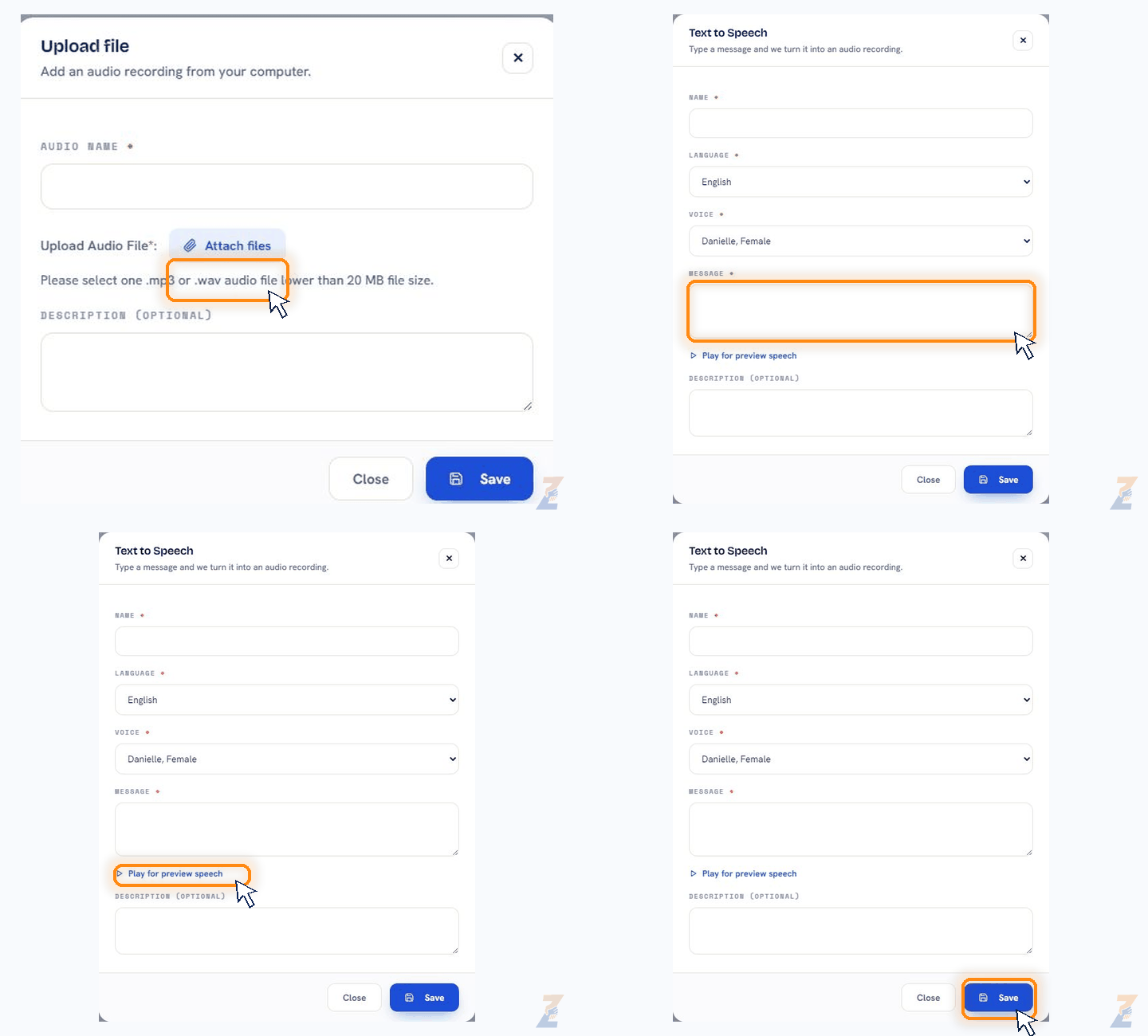
Upload an existing recording:
- Click Add → Upload an audio file.
- Enter an Audio Name.
- Click Attach files and choose one .mp3 or .wav file under 20 MB.
- Add an optional Description and click Save.
Create from text:
- Click Add → Create from text (Text-to-speech).
- Enter a Name, choose Language and Voice, then type the Message.
- Use Play for preview speech. Check names, numbers, pronunciation and pauses.
- Adjust the text if needed, add an optional Description and click Save.
3. Attach the audio where callers should hear it
- IVR: create or edit the menu and choose the audio under Greeting.
- Ring Group: choose it under Greetings for a message before the destinations ring.
- Voicemail: its form provides its own greeting choices: default, Upload file or Text to Speech. Use those controls to set the mailbox greeting.
Save the destination you edited. Merely adding an audio file does not replace every greeting or connect a new menu to the number.
4. Verify it on a call
Call from an external phone through the route that uses the greeting. Confirm the new audio plays, the volume is clear and any announced IVR keys match the menu. A computer preview checks the audio; the call checks that you assigned it to the right place.
Editing and reuse
Use the pencil beside an existing recording to edit it. Before replacing or deleting shared audio, check which menus or groups use it. When working with another number, check its greeting picker for the recording first; if it is unavailable, ask your administrator about access or add the required audio there.
Keep separate recordings for different languages or purposes. Record in a quiet room, keep the message brief and avoid combining a temporary holiday announcement with a permanent main-menu greeting.
Related guides
- How to Create an IVR / Auto Attendant
- How to Create a Ring Group for Multiple Extensions or Cell Phones
- How to Add or Edit Voicemail Settings from the Dashboard
Need help?
Call/Text/WhatsApp: (833) 966-4835
Email: info@zonitel.com