How to Route Calls During Holidays or Temporary Closures
Prepare a temporary greeting and destination, redirect incoming calls during a closure, then restore and test the original route when you reopen.
Close temporarily without losing your normal route
Use this guide for a holiday, training day or other temporary closure. The method below is a manual change: you activate the temporary destination at the start and restore the original destination when you reopen.
For recurring weekly hours, use Business Hours. Its Day of Month condition is a day number, not a complete holiday date with month and year; do not treat it as an automatic one-time closure.
1. Record what you will restore
- Sign in to the Office Portal and select the correct location.
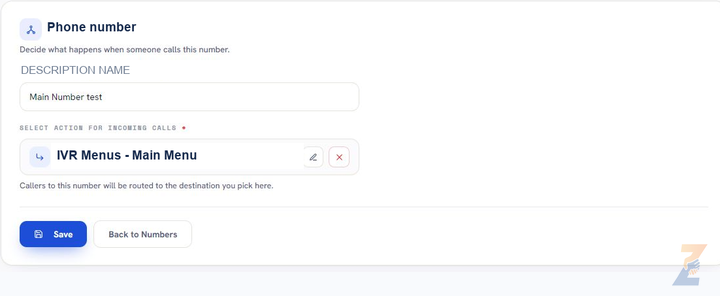
- Open Settings → Phone Numbers and click Call Flow for the number callers dial.
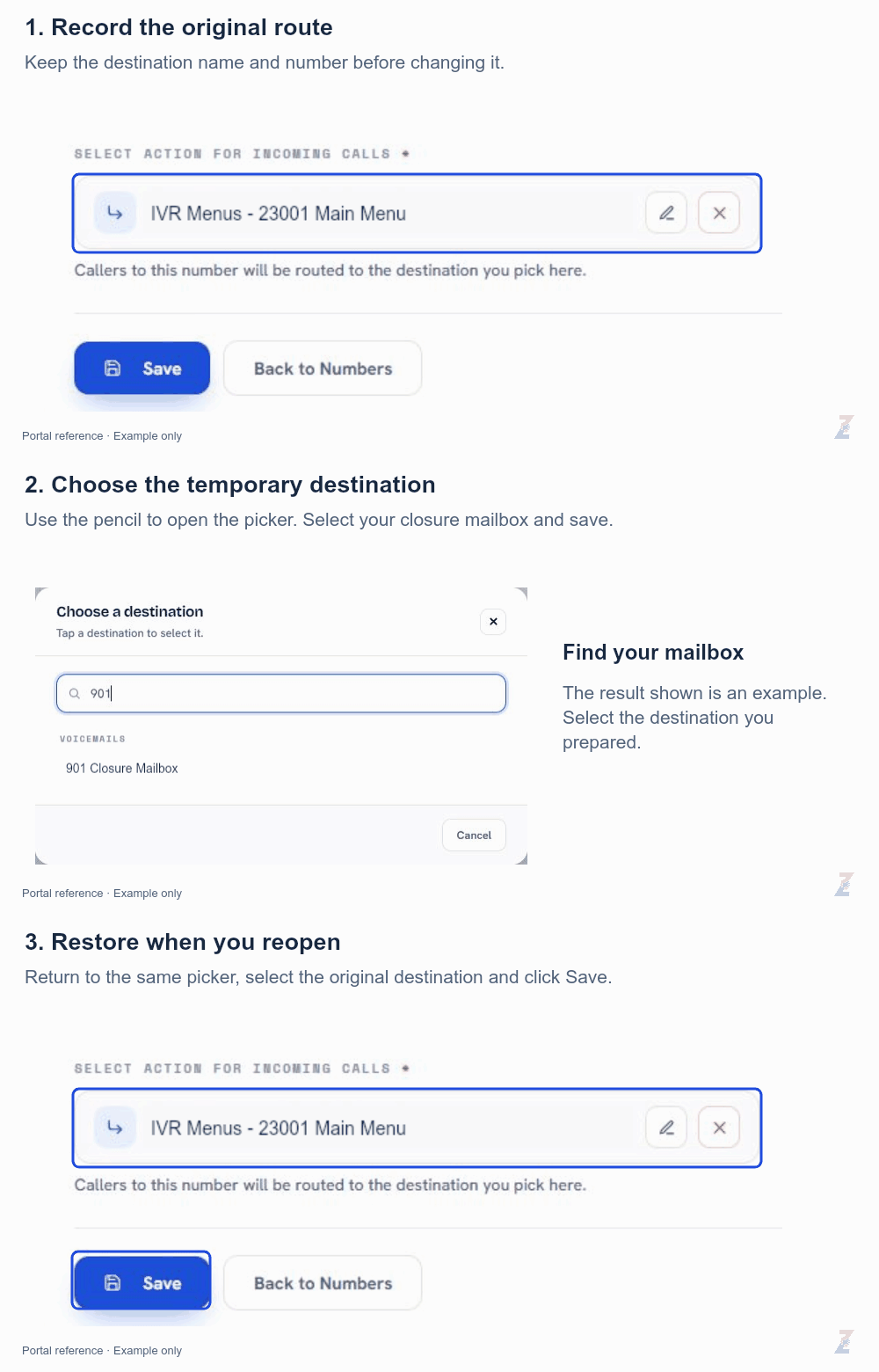
- In the section named after that number, record the full destination shown in Select Action for Incoming Calls. Keep its type, name and number, or take a screenshot.
- Write down the closure start, reopening time, time zone and who will restore the route. Repeat for each affected number.
Also check Phone Numbers → Settings → Call Forwarding for the number. Enabled always-forwarding redirects calls regardless of Business Hours or time conditions. If it is active, record its state and destination and agree how it should behave during the closure before changing the entry action.
2. Prepare the temporary destination
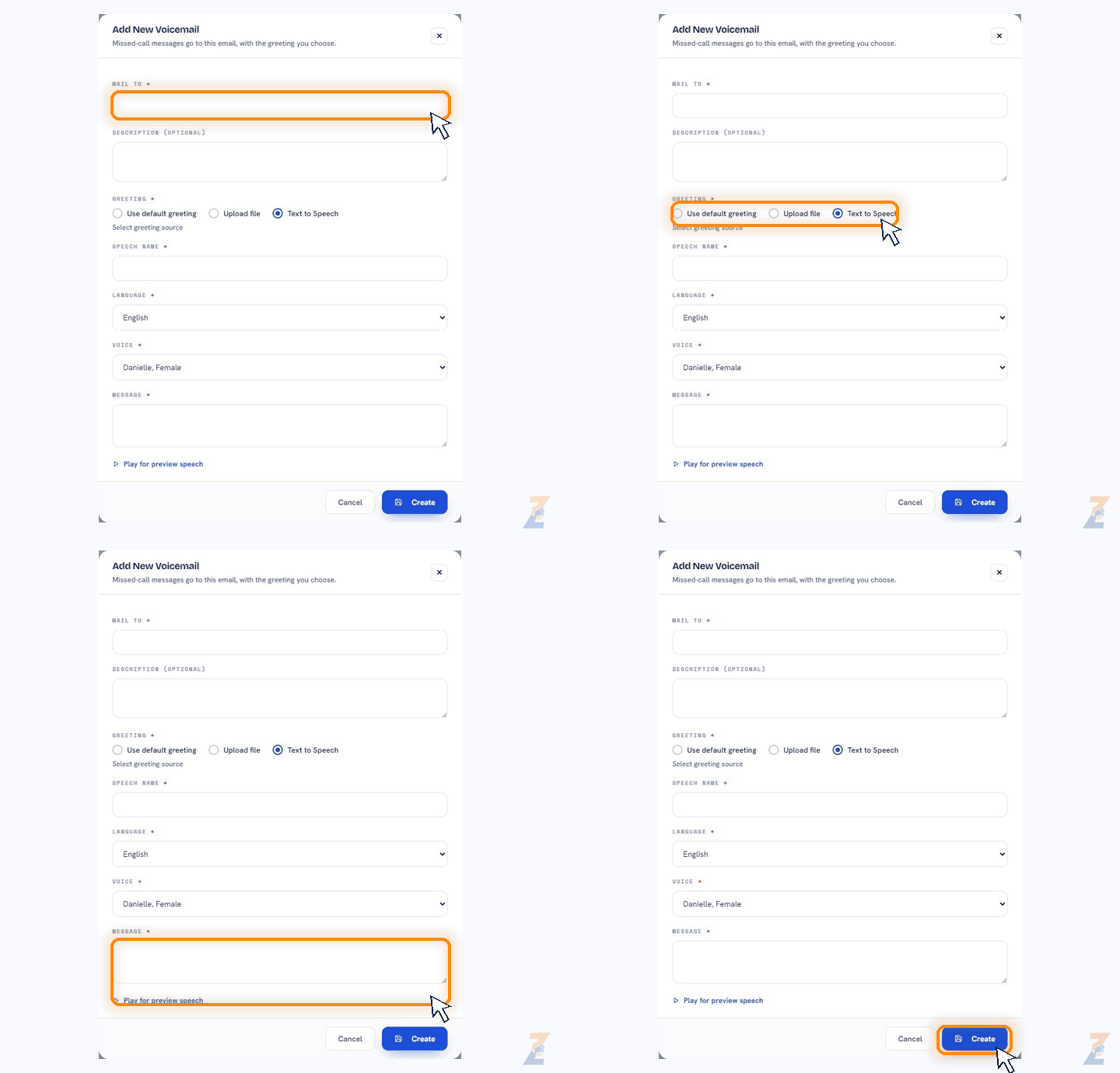
For a voicemail-only closure, open Call Flow → Voicemails → Add Voicemail. Enter the notification email in Mail to, add a description such as “Temporary closure,” and choose Upload file or Text to Speech for the greeting. Preview the audio where available, then click Create.
Sample greeting: “Thank you for calling [Business]. We are closed on [date] and will reopen on [date] at [time and time zone]. Please leave your name, callback number and a brief message.” Replace every placeholder before saving.
A separate mailbox or greeting avoids changing a shared everyday greeting. If a team will answer during the closure, prepare a dedicated Ring Group with the intended destinations and an unanswered-call fallback instead.
3. Activate the closure route
- At the agreed start time, return to the number’s first Call Flow section.
- Click the pencil beside the current incoming action to open Choose a destination.
- Find and select the temporary mailbox or prepared destination.
- Click Save on the Call Flow page.
Selecting the temporary destination directly bypasses the usual schedule or IVR that previously occupied this entry point. Keep a note of it so the team knows why normal menu options are temporarily unavailable. Opening the picker alone does not save a change.
4. Test before leaving the office
- Call the business number from an external phone.
- Confirm the closure greeting and the correct destination.
- For voicemail, leave a short test message and check Calls → Voicemail and the Mail to email inbox.
- For a staffed destination, test both an answered call and an unanswered call.
If the normal route still answers, check the exact number, the saved incoming action and any always-forwarding setting. See Troubleshoot Calls Going to the Wrong Destination.
5. Restore the normal route when you reopen
- Return to the same number and incoming-action picker.
- Select the original destination you recorded in step 1 and click Save.
- If you changed number forwarding for the closure, restore its recorded setting too.
- Make an external test call. Check the normal greeting, menu or team, and its unanswered-call destination.
Finished when: the normal route is saved, the test reaches the expected destination and the closure greeting is no longer heard on that route. You can keep the temporary mailbox for reuse, but do not delete it while another route still uses it.
Related guides
- How to Set Up Business Hours
- How to Add or Edit Voicemail Settings from the Dashboard
- How to Create a Ring Group for Multiple Extensions or Cell Phones
Need help?
Call/Text/WhatsApp: (833) 966-4835
Email: info@zonitel.com