How to Change or Record Your Voicemail Greeting from Your Desk Phone
Record, save and activate your extension’s voicemail greeting, then test the mailbox callers actually reach. Includes the portal alternative.
Record and activate your extension’s greeting
Use your own extension to change its voicemail greeting. A shared mailbox reached by your main number may be a different mailbox; check the call flow before assuming this changes the company’s main greeting.
1. Open voicemail
- From your Zonitel desk phone, dial *97 and place the call. A configured Messages/Voicemail button may also open it.
- Enter your mailbox PIN when prompted.
- If you do not know the PIN, contact your administrator or support. Do not assume a universal default PIN.
2. Record and save a greeting
- Listen to the spoken menu and choose the greeting or advanced-options menu.
- Choose the option to record a greeting. If asked for a greeting slot, note which one you use.
- Record in a quiet place. Include your business or name and ask for a name, callback number and brief message.
- Listen to the playback, re-record if needed and follow the prompts to save.
Use the keys announced by your mailbox. Menu choices can differ; do not press through a sequence without listening.
3. Select the greeting callers should hear
If the mailbox offers several greeting slots, select or activate the one you just recorded using the spoken menu. Saving a recording and selecting the active greeting can be separate steps. Follow any confirmation before hanging up.
4. Test the actual route
- Call from an external phone using the number or IVR option that reaches this mailbox.
- Let the call go unanswered and listen to the greeting.
- Leave a short message and verify it in the mailbox.
If an old greeting still plays, confirm the active greeting slot and the mailbox reached by the route. Your main number’s shared voicemail is not necessarily your extension’s mailbox.
Alternative: set the greeting in the portal
Open Settings → Phone Numbers → Call Flow → Voicemails and edit the correct mailbox. Choose Use default greeting, Upload file or Text to Speech, complete the required fields and save. For a new mailbox, use Add Voicemail and Create, then connect it to the intended route.
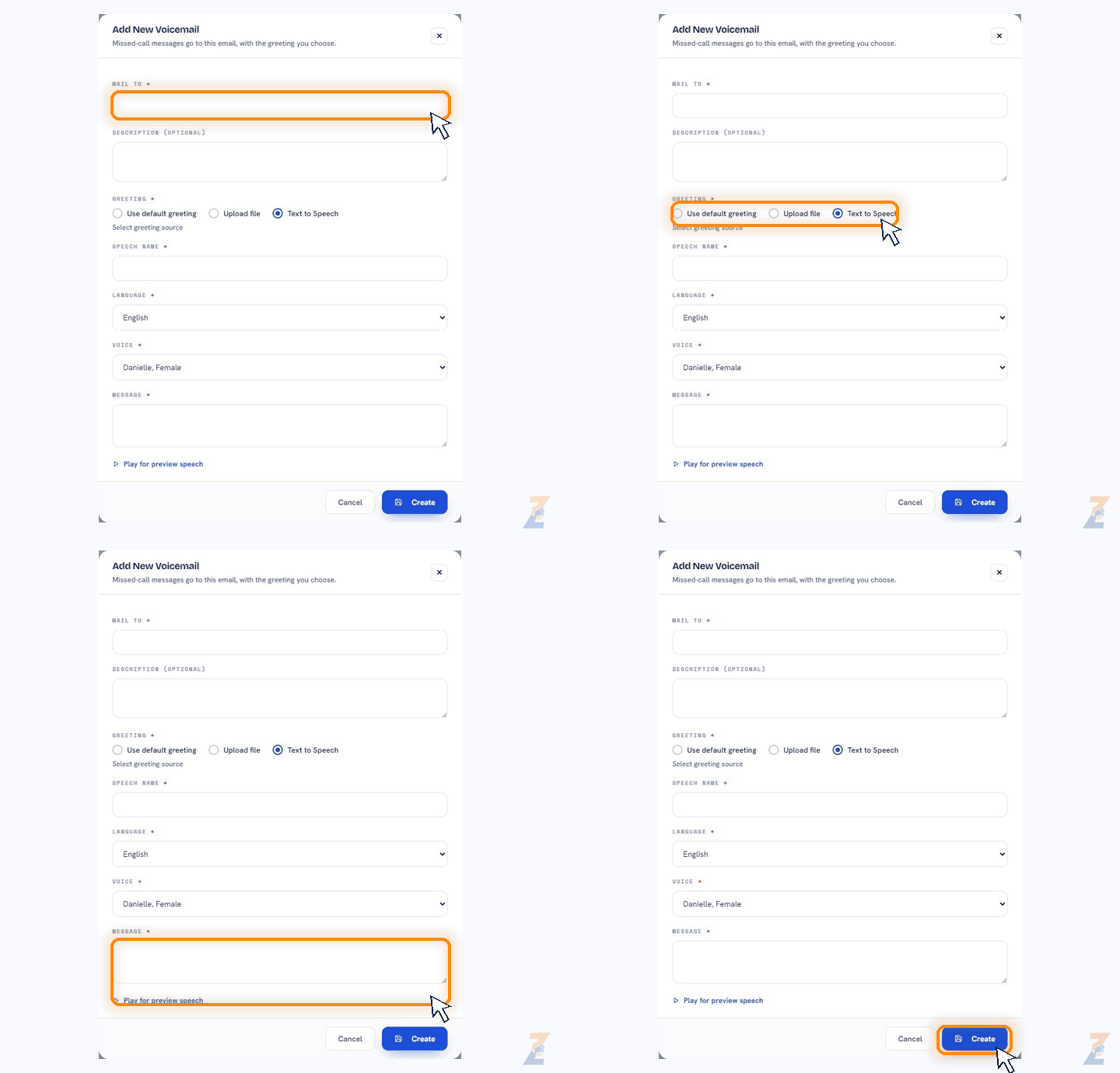
To listen to messages on your computer, open Calls → Voicemail. That list plays received messages; the mailbox configuration controls the greeting callers hear. See the related guides for full portal steps.
Related guides
Need help?
Call/Text/WhatsApp: (833) 966-4835
Email: info@zonitel.com