How to Create a Ring Group for Multiple Extensions or Cell Phones
Create a Ring Group for extensions or cell phones, choose Simultaneous, Sequential, Rollover or Random, set Order and Timeout per destination, and configure the unanswered-call route. Use Enabled to disable destinations without deleting them.
Ring several destinations and handle unanswered calls
Use a Ring Group for a team or department. Decide which extensions or external numbers should ring and where the call should go if nobody answers.
1. Open the group settings
- Open Settings → Phone Numbers → Call Flow for the correct number.
- Select Team Ringing (Ring Groups).
- Click Add Ring Group, or the pencil beside an existing group.
- Enter a Name. Optionally choose a recording under Greetings for the message before ringing.
2. Choose Strategy and add destinations
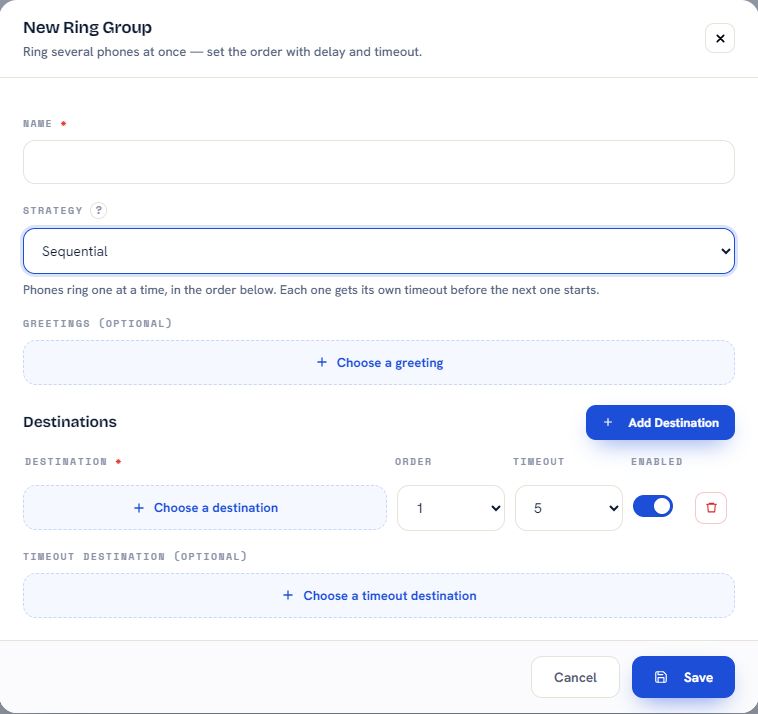
Select a Strategy for the group:
- Simultaneous: ring the destinations at the same time.
- Sequential: try destinations one at a time in the sequence set by Order.
- Rollover: try the next destination when the current destination cannot take the call.
- Random: try destinations in a random order.
Complete the first destination row. Use Add Destination for another. Choose the extension or allowed external number and configure each destination:
- Order: its position in the calling sequence. For Sequential, use 1 for the first destination, 2 for the second, and so on.
- Timeout: the maximum ringing time for that destination, in seconds, before the strategy continues or the unanswered-call route is used.
Sequential example: select Sequential and set A to Order 1 / Timeout 15, B to Order 2 / Timeout 15, and C to Order 3 / Timeout 15. The group tries A, then B, then C if nobody answers. Use Sequential + Order instead of creating a sequence with increasing Delay values.
Simultaneous example: select Simultaneous, set each destination's Delay to 0 and Timeout to 20 seconds to ring them together.
Enabled: this option is now available. Turn it off to temporarily disable a destination without deleting it, and turn it on to enable the destination again.
3. Choose the unanswered-call destination
Under Timeout Destination, choose where the call goes when the group is unanswered: for example, a shared voicemail or another appropriate destination. Do this before clicking Save. Avoid sending the call back to the same group.
The destination timing field depends on Strategy: Sequential shows Order; Simultaneous shows Delay. Delay controls when ringing starts, not a sequential calling order.
Loop protection for destinations and fallback
Office prevents Ring Group routes that send a call back to the same number or group and create an endless loop. This protection applies to the group destinations and the Timeout Destination (fallback).
For example, if your business number routes to this Ring Group, do not add that same business number as a destination or fallback: it would start the same route again. Choose an extension, voicemail or another destination that does not return to the group.
If a route is blocked, review the selected destination and its call flow, correct the return path and save again. Test both normal ringing and unanswered calls after saving.
4. Connect the group to the route
To ring this group directly, return to the number’s first section, select it in Select Action for Incoming Calls and click Save. If Business Hours or an IVR should run first, keep that entry point and choose the group as its destination or menu option instead.
5. Test the result
- Call the business number from an external phone.
- Confirm the greeting, which phones ring and the intended timing.
- Answer one destination and check that the call connects correctly.
- On another call, let all destinations go unanswered and confirm the timeout route.
- If a cell phone is included, test whether its carrier voicemail answers before your intended fallback. Adjust timing or ask support about the appropriate setup.
Ring Groups control calls routed to the group. They do not automatically replace your business-hours schedule or configure outbound caller ID.
Calls come from: check where this destination is used
In Team Ringing (Ring Groups), the Calls come from column shows the configurations that send calls to each group, such as a phone number, Business Hours or an IVR option.
- A named source: that configuration routes calls here.
- +1 more / +2 more: additional sources also use this destination.
- No calls sent here: no incoming routing references are listed. This is a configuration check, not a call-history report.
Before deleting a group: review every listed source, change its destination and save the source configuration. Check the list again and test the replacement route. While another configuration sends calls here, the group cannot be deleted.
Related guides
- How to Set Up Business Hours
- How to Configure Follow Me/Forward for an Extension
- How to Add or Edit Voicemail Settings from the Dashboard
Need help?
Call/Text/WhatsApp: (833) 966-4835
Email: info@zonitel.com